
Employee Guides
foundU vs Paper Timesheets
First, the app allows employees to clock in and out easily, reducing the time and effort required on their part to document their attendance. Often it can be hard for a fieldworker to find a site representative to sign them off at the end of the shift. It also eliminates the chances of errors that may occur due to manual entry, which reduces the likelihood of disputes with employers over the number of hours worked.
The app provides WorkCon Fieldworkers with a transparent and easily accessible record of their work hours. They can track their records anytime and anywhere through their mobile device or computer, without relying on paper forms or waiting for manual processing by the employer.
Another advantage of the app for employees is the ability to receive important notifications such as reminders about upcoming schedules, updated rosters, announcements, and work-related news, all in real-time. This allows employees to stay connected and informed about important company updates or changes that might affect their work schedules and allows them to adjust their personal schedules accordingly.
Overall, the FoundU app provides employees with a fast, convenient, and accurate way to document their time and attendance, as well as access the information related to their employment all in one place, which saves them the burden of dealing with cumbersome paper-based systems.
Downloading the foundU App
iPhone – download
1. Open the App Store on your iPhone.
2. Search for “foundU”.
3. Tap on the “foundU” app icon.
4. Tap on “Get”.
5. Enter your Apple ID password and tap on “Install”.
6. Once the app is installed, tap on “Open” to launch it.
Android – download
1. Open the Google Play Store on your Android phone.
2. Search for “foundU”.
3. Tap on the “foundU” app icon.
4. Tap on “Install”.
5. Accept the terms and conditions and tap on “Install” again.
6. Once the app is installed, tap on “Open” to launch it.
Additional requirements for downloading the foundU app:
• iPhone: iOS 12.0 or later
• Android: Android 5.0 (Lollipop) or later
• Minimum RAM: 1 GB
• Internet connection: Wi-Fi or cellular data
Login to foundU
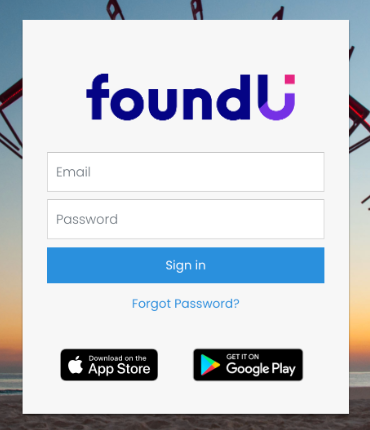
1. Enter your email address and password and click Sign in.
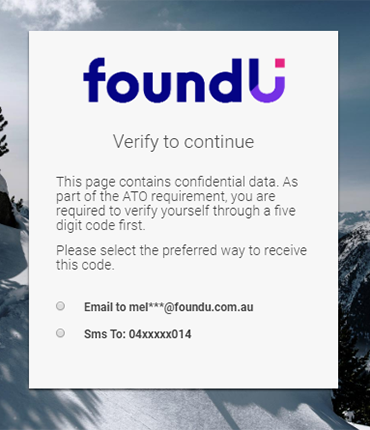
2. Select how you wish to receive your verification code. You can receive the code via email or SMS.
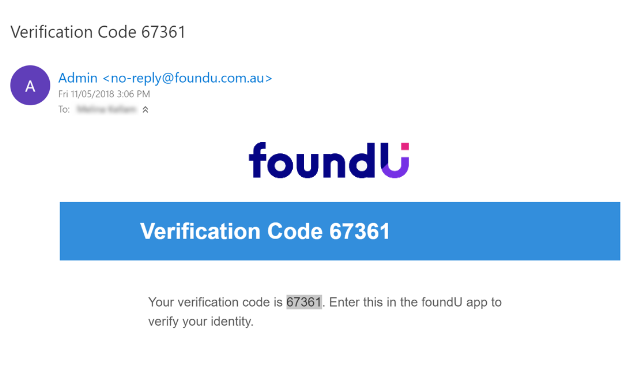
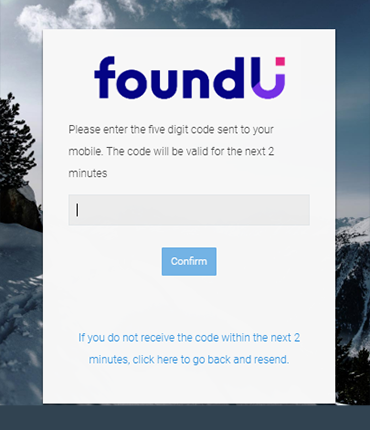
3. Enter your code and click Confirm.
You will now be logged in.
If you do not enter the code within 2 minutes, you must send another code.
Verification Code not coming through?
Verification codes generally come through within a couple of minutes. Be sure to also check your junk/spam/promotions/other folders if it has not come through.
Reset or Forgot Password
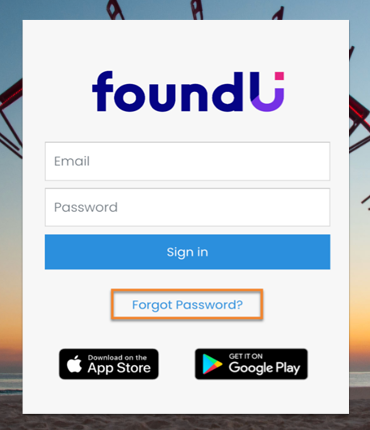
To reset your password:
1. Select ‘Forgot Password?‘
2. You will be prompted to enter the email address that you used to register your foundU account.
Please note: If you are not sure what email you used, please contact your WorkCon representative.
3. You will then be prompted to confirm the email that the five-digit verification code will be sent to.
4. You will receive an email with their five-digit verification code (depending on the option selected).
Verification Code not coming through?
Verification codes generally come through within a couple of minutes.
Be sure to also check your junk/spam/promotions/other folders if it has not come through.
5. Enter the verification code.
6. Enter a new password (8 characters, including at least one capital letter and symbol) and select ‘Confirm‘.
7. You will then be redirected to the login screen and will need to use your email and new password to log into the platform.
Email already registered or multiple employers with foundU
If you have multiple employers that use foundU, or your email address is already registered with foundU via a different employer.
Simply follow the below steps to ensure you are logging into the WorkCon Platform.
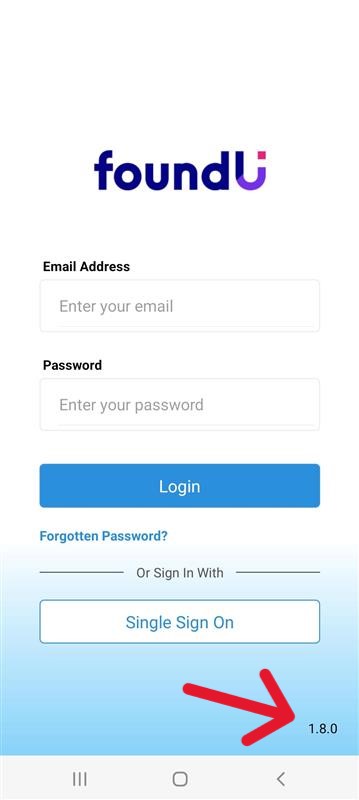
1. On the log in screen of the app, click on the numbers found in the bottom right corner. This will take you to the “Platform Selection” Screen.
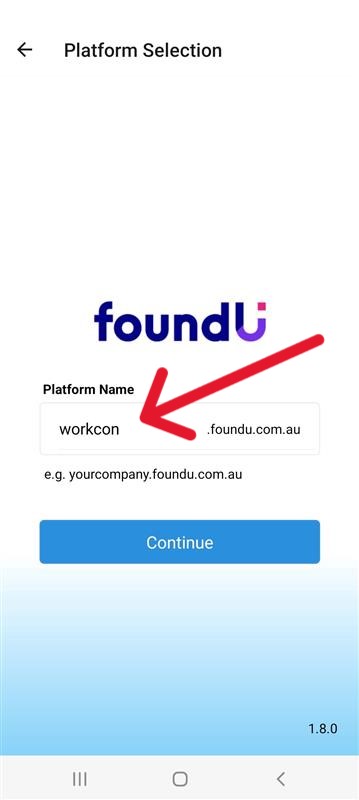
2. Under platform name, enter WorkCon and select continue.
3. You will be returned to the Login screen, and should be able to log into the app.
If you continue to have any issue, please contact your WorkCon representative.
Shifts - Checking rostered, offers, accepting & declining
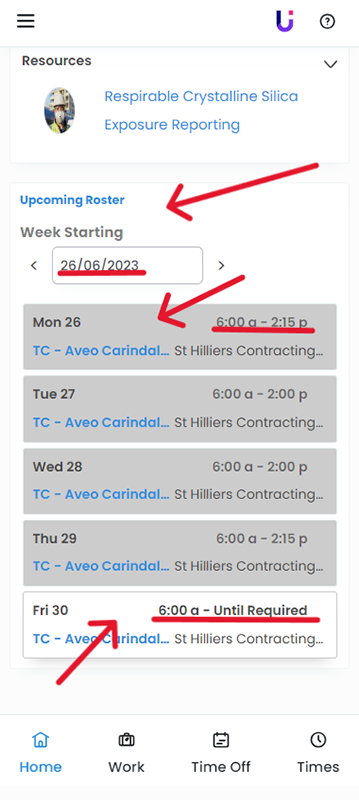
You can toggle through different weeks by selecting the Forward or backward arrows either side of the “Week Starting” box.
If the start and end times of your shift in the app don’t match the actual hours you worked, tell your Allocator so they can fix it before sending the shift to the client.
• Shift times are checked within 1 business day of your shift ending.
• Please give your Allocator that time to make adjustments based on your clocking in and out times and any comments you made at the end of your shift.
• The deadline for making shift adjustments is Monday at 9am. Please check your shift times regularly and let your Allocator know of any changes before the deadline. (This is when shifts are sent to the sites for approval.)
Upcoming Shifts
Tomorrow’s shift will be displayed on the screen. Any un-actioned shift offers, will also be displayed in this area.
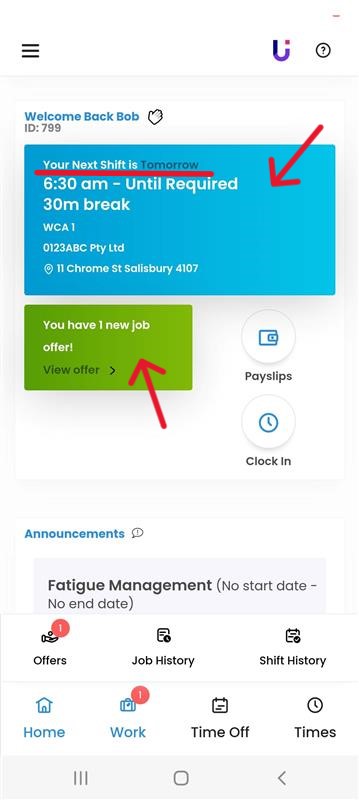
• An SMS message notifying you of shift offers will be sent at the time of you being allocated.
• Shift Details can be viewed by clicking on an individual shift. It is important to view shift details to check for any special requirements, or notes from your allocator.
• By accepting the shift, you are confirming your attendance to the shift. If for any reason, your availability changes, you must contact your allocator.
• Shifts are subject to change at any time. This includes cancellation, changes to day and times, and location of shift. Often this is at the discretion of the Client/site. WorkCon will always do its best by its Fieldworkers in notifying of changes as soon as practically possible and where possible re- allocate fieldworkers to different shifts in order to keep them working.
• Failure to attended an assigned shift after confirmation may lead to termination of employment with WorkCon.
Clocking in & out of shifts and using comments
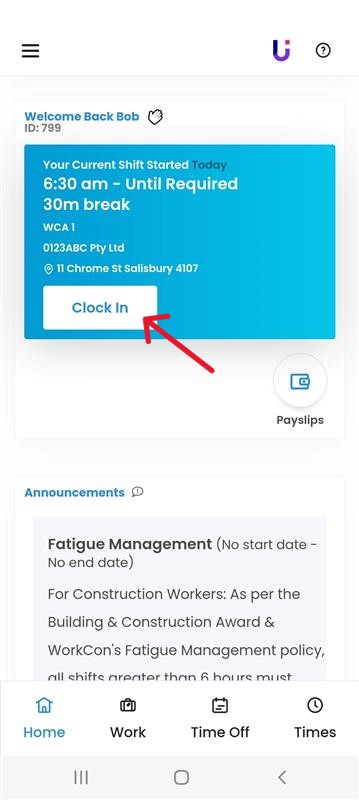
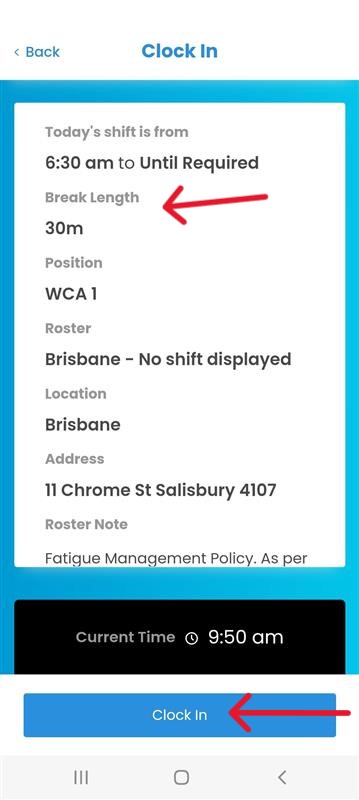
2. When you finish your shift, open the FoundU app and tap the “Clock Out” button.
3. If your start or end times don’t match your actual work hours, you can write a comment to explain why.
4. At the end of your shift, you will be asked if you completed your shift as scheduled and if there are any other comments to be left (i.e. Working in Rain). Answer this question honestly. All shift times are sent to the client for approval, if you started early, finished later than normal, it is important to explain that in the comments in order to remind the site and get those times approved.
5. If you are late for work, clock in as soon as you arrive. If you forget to clock out when you leave, clock out immediately, and leave a comment with your actual finish time. (Your allocator will make the adjustments needed)
Here are some examples of comments you could write:
• “6:30am start. I was late because of traffic.”
• “I was asked to start early by the site manager. 5am start”
• “I had to leave early because I was sick. 6:30 – 8:45am”
• “The Site Manager asked me to work back until 4pm”
• “WIR 7am-9am”
Accepted Shift Comments
The following Comments are accepted, and will be actioned. Comments must be in this format, or they risk not being processed.
Asked to start early shift
Format: Start time – Reason for starting early and/or who asked you to start early
Example: 5am start – John the site manager asked me to start early today due to concrete pour this morning.
Asked to work late
Format: Finish time – Reason for starting early and/or who asked you to start early
Example: 5pm Finish – John the site manager asked to work late to complete the jobs we were working on.
Forgot to clock in / clock out
Example: 6:30am start – Forgot to clock in this morning
Example: 5am start – John the site manager asked me to start early today due to concrete pour this morning.
Late start clock in
Example: 7am start – I was running late this morning due to traffic.
Working in Rain
Format: WIR – time rain started – time rain finished
Example: WIR 7am – 9am
Note: WIR penalties only apply when you are required to be working outside in the Rain, and must be approved by the site/client.
No Break
Format: Site Representative name instructed me to work through my Smoko/Lunch Break. Reason:
Example: John instructed me to work through my Lunch break. We had to get the deck cleaned before the concrete pour started.
Note: Without clearly describing who and why you were instructed to work through your break, WorkCon will interpret any other comments relating to breaks not been taken as the Fieldworkers choice to work through the break and this would be in violation of WorkCon Fatigue Management Clause & Policy.
WorkCon Fatigue Management Clause
For Construction Workers: As per the Building & Construction Award & WorkCon’s Fatigue Management policy, all shifts greater than 6 hours must INCLUDE a 30 min unpaid meal break. It is the responsibility of the worker to take their required breaks.
Shift Less than 4 hours
Format: Reason for shift finishing with in the 4 hour minimum
Example: I was feeling sick and had to go home. 6:30- 8:30am
Note: If the worker chooses to go home inside the first 4 hours, the 4 hour min does not apply, paid for the hours worked only)
Example: Site sent us home early. Work for the day was called off
Note: 4 Hour min only applies if it is the sites decision to send the Fieldworker home with in that time. The Site/Client are entitled to keep the Fieldworker on site for the duration of the 4 hour min if they choose to.
Checking hours worked (timesheet) – Notifying of errors
Your allocator checks your shift comments within 24 business hours to update times if required. Please allow this time for adjustments to be made, however if the hours displayed do not reflect the times you worked, please contact your allocator before the Monday 9am deadline.
Signing Documents & Inductions
1. Open the foundU app on your mobile device.
2. Tap on the “Documents” tab.
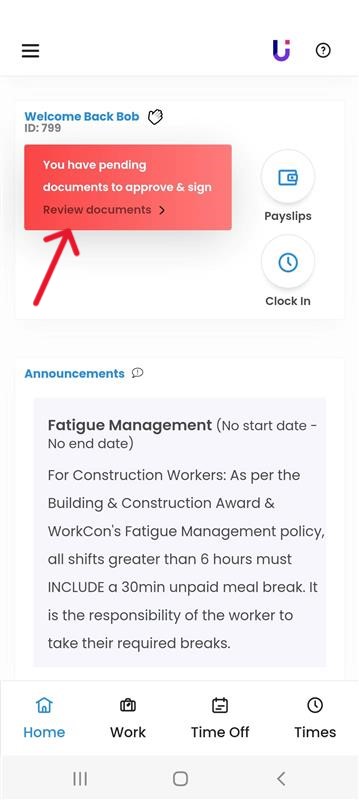
3. Find the form you were sent and tap on it.
4. The form will open in a new screen. You can then view the form and read its contents.
5. To sign the form, tap on the “Sign” button.
6. You’ll be prompted to enter your name and email address. Once you’ve entered your details, tap on the “Sign” button again.
7. The form will be saved and signed.
Silica – Reporting you were required to wear a dust mask
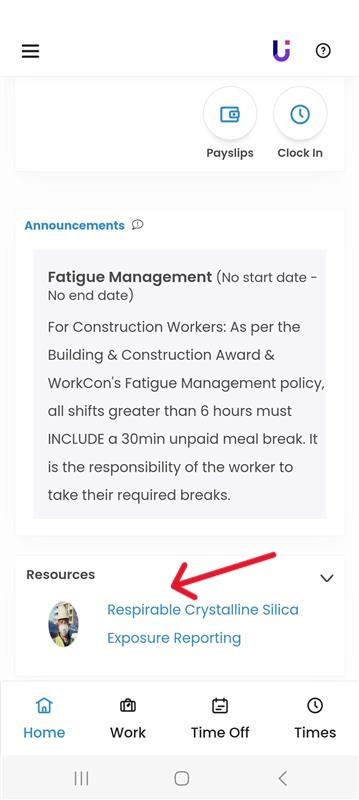
1. Click the “Respirable Crystalline Silica Exposure Reporting” link in the Resources section on the home screen of the foundU app.
2. Answer the questions honestly and in as much detail as you can. (eg. I was sweeping inside for 3 hours today.)
3. Click on the “Submit” button when you’re finished.
All submissions are reviewed by WorkCon’s National Safety Manager and team. Should they require more information, or wish to discuss further the frequency of you undertaking tasks that expose you to silica, they will contact you directly.
WorkCon Contact Directory
Contact for: Scheduling and work allocation issues, shift updates, inability to attend shifts, site concerns, TGS-related issues, additional work requests.
Brisbane Traffic Control: Julie – 0477 414 432
Brisbane Labour Allocation: Brendan – 0492 280 917
Gold Coast Traffic Control: Skarlett – 0400 876 980
Gold Coast Labour Allocation: Chris – 0407 596 374
Operations
Contact for: Timesheet adjustments, forgotten clock-ins/outs, technical issues with FoundU app.
Operations Assistant: Ella – 0474 291 087
Recruiters
Contact for: New hire onboarding, providing new starter documents, general recruiting processes.
Brisbane Recruiting: Zack – 0459 299 169
Gold Coast Recruiting: Aaron – 0400 228 443
Payroll
Contact for: Issues with payslips, superannuation details, tax information, and other payroll-related queries.
Payroll Office (WorkCon Landline): (07) 3558 0660